How to remote debug Chrome and WebViews on Android with Inspect?
Inspect helps you debug Chrome and WebViews on Android devices by giving you an all-in-one developer tool for macOS, Windows, and Linux.
To get you started we have put together this step-by-step guide that outlines how you get going debugging Chrome on Android with Inspect.
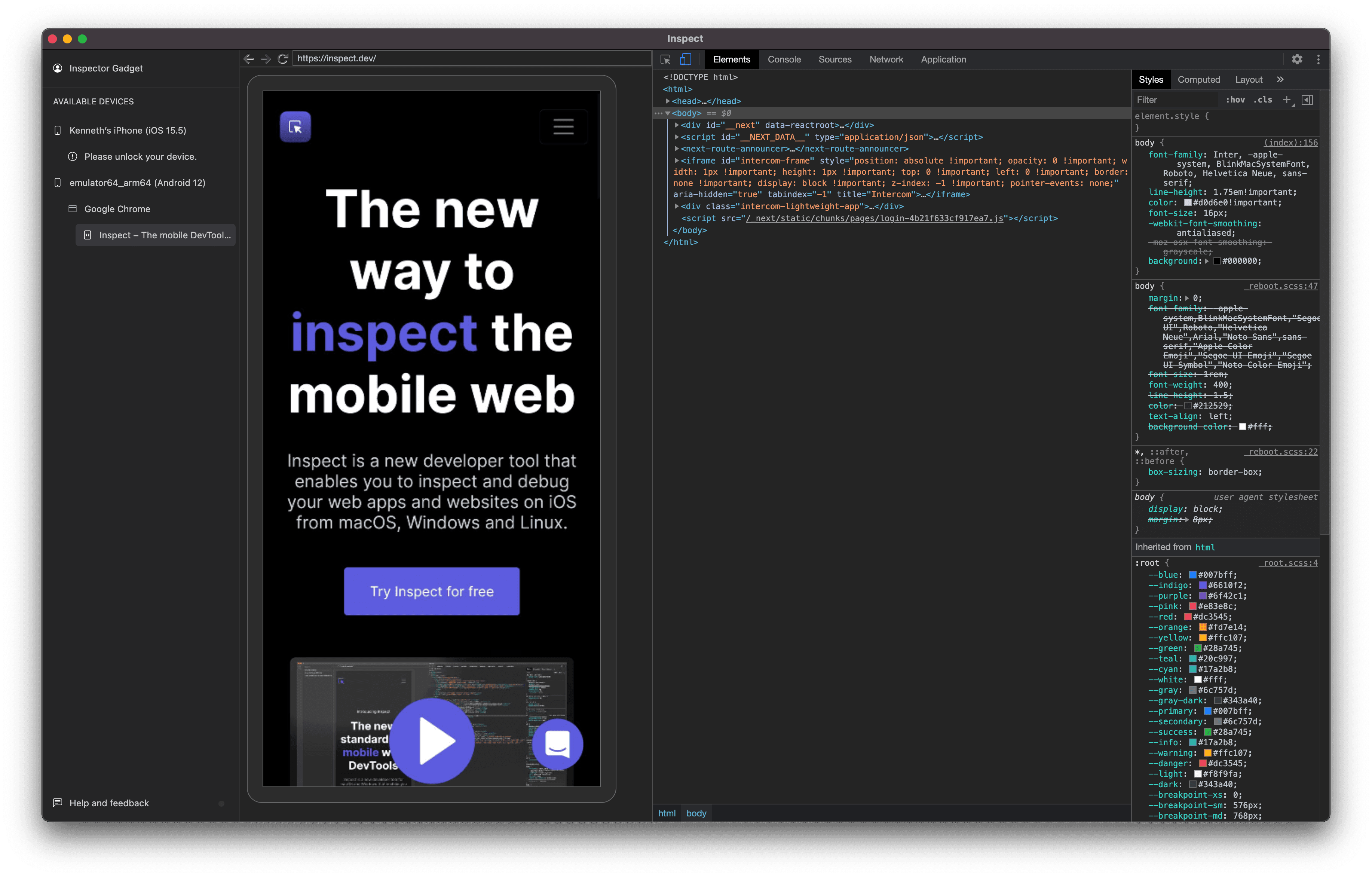
Inspect uses adb behind the scenes to detect and talk to your Android device. You need to have adb installed in your $PATH for Inspect to be able to execute commands to the devices.
Prerequisites
- macOS, Windows, or Linux
- Android device with USB debugging enabled
- Android Debug Bridge (ADB) installed
- USB cable
Steps
- Enable USB Debugging: Go to Developer Options on your Android device and enable USB Debugging. See Android's official documentation for instructions.
- Install ADB: Install the Android Debug Bridge following the official instructions. Verify it's accessible by running
which adbin your terminal. - Download Inspect by going to our download page.
- Connect your device: Connect your Android device to your computer via USB cable. When prompted, confirm the trust permissions on your device.
- Start Inspect and your device will appear in the available devices list.
- Open Chrome on your Android device and start debugging.
Supported browsers and WebViews
Chrome
Inspect supports debugging Chrome on Android devices.
WebViews
Inspect also makes it easy to inspect and debug content within WebViews on Android. Read more in our dedicated WebViews docs.
Crosswalk
Inspect supports debugging Crosswalk-based WebViews on Android.
Happy Inspecting!